UX/UI DESIGN BRIEF #9
Redesigning the Swedish Tourism Site
A step-by-step project guide: research how visitors plan a trip, map the user journey, use the existing UI/UX Style Guide template, design responsive website screens, and build and test an interactive prototype.
User FlowUI/UX Style GuideResponsive WebFigma MakeUser Testing</div> </header>
The Project
Your challenge is to redesign the Swedish tourism website to help people discover Sweden and plan a visit. Make the experience easier to navigate, more informative, and more useful to a clearly defined audience. Do not try to redesign every page. Identify one meaningful user problem and build a connected responsive website experience that addresses it.
01<h3>User Flow</h3><p>Map the visitor journey and key decisions in FigJam.</p></div>
02<h3>UI/UX Style Guide</h3><p>Duplicate and complete the existing course template.</p></div>
03<h3>Flat Screens</h3><p>Design responsive website pages in Figma Design.</p></div>
04<h3>Interactive Prototype</h3><p>Connect the visitor journey and refine it with Figma Make.</p></div>
05<h3>User Testing</h3><p>Test, revise, and test again with visitors.</p></div>
Client Brief: Swedish Tourism
Objective
Improve the tourism website experience by helping prospective visitors explore Sweden, find destinations and experiences, access practical travel information, and plan a trip. Your redesign should address a specific pain point supported by research and testing.
Target audiences
First-time visitor: wants to understand what Sweden offers and find a destination that fits their time, interests, and budget.
Culture-focused traveler: wants to discover Swedish design, food, museums, and local cultural experiences.
Family travelers: want practical information about activities, transport, seasons, and planning a family-friendly visit.
Choose one primary audience. These are possible audience types for your research, not supplied personas or research findings. Validate your assumptions and make design decisions for one main user and one clearly defined task.</div>
Requirements to consider
- Clear navigation for destinations, activities, and trip planning.
- Useful ways to discover places by interest, region, season, or travel style.
- Destination and experience information that supports decisions.
- Practical travel information, such as getting around, weather/season, and accessibility where relevant.
- Clear calls to action to save, compare, or plan a trip.
- Responsive layouts that work on desktop and mobile.
You do not have to add every feature. Use research to choose the most important visitor problem and keep your prototype focused.
01 — Research the Existing Experience
Before redesigning the Swedish tourism site, examine the current website and ask prospective travelers how they research destinations, compare experiences, and plan a visit. Observe where information is hard to find, where choices feel unclear, or what questions remain unanswered.
- Identify one visitor task and one recurring point of friction.
- Record what people currently do and where they struggle.
- Review tourism websites for other destinations to compare navigation, content structure, and planning tools.
- Write a short problem statement and a “How might we…” question.
Example problem statement: “First-time visitors are interested in Sweden but struggle to narrow a broad set of destinations and experiences into a realistic trip.” This is only an example. Use your own observations to define your actual problem.</div>
02 — Create Your User Flow in FigJam
Before designing screens, choose one task for your visitor. Map the starting point, the actions and decisions along the way, and what success looks like. Your flow should describe the logic of the experience—not just show a row of finished app screens.
Your user flow should show<ul><li>The starting point and the user’s goal.</li><li>The sequence of actions and screens.</li><li>Decisions and alternative paths.</li><li>Relevant error, empty, or recovery paths.</li><li>The successful completion of the task.</li></ul></div>
Use the course template. Open the AMDE 477 FigJam User Flow Template, duplicate it, and adapt the structure to your chosen visitor task. Keep the flow focused and make the labels easy to follow.
Open the AMDE 477 FigJam User Flow Template →
AMDE 477 | UI/UX DESIGNUSER FLOWPlan the journey before you design the screens.</div>
01 START WITH THE GOALWho is the visitor, and what are they trying to accomplish on the tourism site?</div>
02 MAP THE HAPPY PATHShow the simplest successful journey, then add branches.</div>
03 ADD DECISIONS + ERRORSShow where the experience can change, fail, or recover.</div>
Start / End Screen User action Decision Error / recovery
STARTOpen the Swedish tourism siteVisitor wants to explore Sweden and plan a trip</div>
↓</div>
SCREENChoose a starting pointBrowse destinations, explore by interest, or search</div>
↓</div>
SCREEN / ACTIONExplore a destination or experienceReview places, activities, regions, and useful trip information</div>
↓</div>
DECISIONDoes this destination fit the visitor?Does it match their interests, timing, and practical needs?</div>
YES · CONTINUEOpen the destination details and review highlights, activities, and practical information</div>
NO · ALTERNATE PATHAdjust interests, explore another region, or compare a different destination</div>
EMPTY / RECOVERYNo suitable destination foundOffer clear filters, alternative regions, or a way to restart browsing</div>
↓</div>
USER ACTIONSave the destination or start planningHelp the visitor keep exploring or move to practical trip planning</div>
↓</div>
ENDVisitor has a clear next stepThey have found a suitable place and know how to continue planning</div>
Example only. This uses the same visual structure as the Uber assignment: planning prompts, a flow legend, labeled steps, a decision, an alternate path, a recovery state, and a clear outcome. Adapt the journey to your own research and chosen tourism task.</figcaption> </figure>
Deliverable: A clearly labeled FigJam user flow and a brief explanation of the user problem and why you organized the journey this way.
Review: The Project Process in Figma/FigJam: User Flow, Low-Fidelity and High-Fidelity Prototyping.
03 — Complete the Existing UI/UX Style Guide Template
Use the existing Student UI/UX Style Guide template created for this course. Open the template, duplicate it, and adapt its sections to your Swedish tourism website redesign. Do not create a different style-guide format.
Open the Student UI/UX Style Guide template in Figma →
 <figcaption>Actual course template — Visual Research & Moodboard. Use the existing template and adapt the research and visual direction to your Swedish tourism website redesign.</figcaption></figure>
Color and contrast
Define your color palette and explain the role of each color. Use a visual direction that feels appropriate to Sweden and the visitor experience, but make purposeful choices that support readability, accessibility, and your own design direction.
 <figcaption>Actual course template — Color & Contrast. Complete this section of the template and check that text, controls, and states remain distinguishable.</figcaption></figure>
Typography and spacing
Establish a consistent hierarchy for headings, body text, labels, and supporting text. Choose spacing values and apply them consistently across your screens.
 <figcaption>Actual course template — Typography & Spacing. Use this existing section to document your type scale and spacing rules.</figcaption></figure>
Reusable components and states
Document recurring elements such as buttons, search fields, playlist cards, navigation, and playback controls. Show relevant states such as default, selected, disabled, or error where appropriate. Include accessibility considerations such as contrast, legible text, clear labels, and visible focus.
 <figcaption>Actual course template — Components. Define the interface elements that will repeat throughout your prototype.</figcaption></figure>
Deliverable: A completed copy of the existing UI/UX Style Guide template adapted to your Swedish tourism website project. Keep it open as a reference while designing screens.
04 — Design the Flat Screens in Figma Design
Use your user flow and style guide to design the key screens in Figma Design first. Keep the screens organized and name each frame clearly. You should be able to see the visual design before you ask Figma Make to help create the interactive experience.
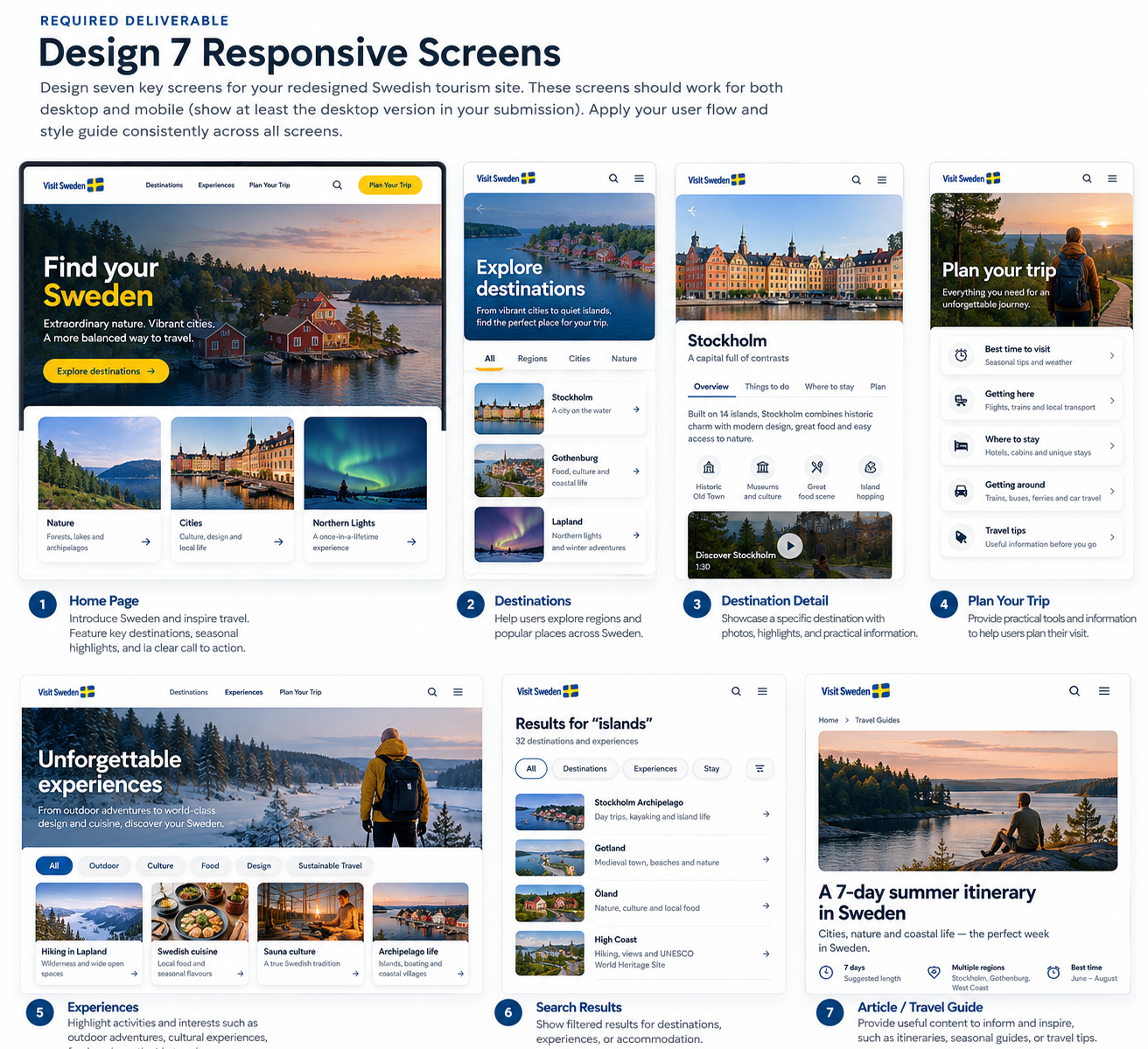
Your screen set should include the responsive website pages needed for your chosen flow. Use these page types as a starting point and select the ones that support your user journey:
- Home: introduce Sweden and make key ways to explore immediately clear.
- Explore or search: help visitors find destinations by region, interest, season, or travel style.
- Destination detail: show highlights, things to do, images, and useful practical information.
- Experience or activity detail: explain what the experience offers and how to plan around it.
- Plan your trip: help visitors organize next steps, transport, timing, or saved places.
- Practical information: provide essential travel guidance and clear paths to relevant details.
Design the desktop and mobile layouts for the key pages in your chosen journey. You do not need to design every page on the website, but include enough connected screens to demonstrate the complete task and important decision or recovery states.
 </figure>
 </figure>
Important: The cards above are illustrative planning examples, not screenshots of the live Swedish tourism site or the course style-guide template. Create your own responsive website designs in Figma and apply your completed template.
Deliverable: A clearly named set of flat screen designs in Figma Design that follows your user flow and applies the rules from your style guide.
05 — Use Figma Make to Build the Interactive Prototype
Once your user flow, style guide, and flat screens are ready, use Figma Make to help turn the planned tourism website experience into a working prototype. Give it a clear description of the user, goal, screen sequence, visual rules, and expected interactions. Your design decisions should guide the tool—not the other way around.
01 / PREPARE<h3>Finish the design</h3><p>Complete the FigJam user flow, course style-guide template, and responsive flat screens in Figma Design.</p></div>
02 / PROMPT<h3>Describe the experience</h3><p>Explain the visitor goal, page sequence, visual system, navigation, and interactions.</p></div>
03 / REFINE<h3>Review and correct</h3><p>Compare the result with your flat screens and style guide. Fix inconsistent visuals, unclear navigation, and broken interactions.</p></div>
Workflow: Research → FigJam user flow → existing UI/UX Style Guide template → flat screens in Figma Design → Figma Make prototype → testing and iteration.</div>
Prototype refresher video
Review this official Figma tutorial on using Figma Make to develop and refine an interactive experience. Use it as a refresher after you have designed your key screens and completed the style guide.
Intro to Figma Make
MADTINKERBLOCKTOKEN0END<p>If the video does not appear, watch the tutorial directly on YouTube.</p></div>
Your prototype should have a clear starting point, working navigation for the main visitor journey, meaningful responses to user actions, and relevant success, empty, or error states. Include responsive behavior appropriate to a tourism website. Preview it from beginning to end before testing.
06 — Test, Revise, and Test Again
Test your early wireframes or prototype with five people. Give each person a realistic task without explaining every step. Observe where they hesitate, make mistakes, or misunderstand a control. Ask what they would improve and request an overall rating using the same scale for everyone.
- Round 1: Test with five people and record observations, comments, and ratings.
- Identify the most important usability issues; prioritize changes that prevent task completion or cause confusion.
- Revise your flow, screens, and prototype based on the evidence.
- Round 2: Test the revised design with five people. Use the same tasks and rating scale so you can compare results.
- Report what changed and whether the second round improved the experience. If it did not, explain what you would revise next.
 <figcaption>Test with real people, observe their behavior, and make evidence-based improvements.</figcaption></figure>
What to report
- The task each participant attempted.
- Patterns you observed across participants.
- The most important changes you made after the first round.
- Ratings before and after iteration, using the same scale.
- What you learned and what you would improve next.
Final Deliverables Checklist
- Research notes and a clearly defined user problem.
- FigJam user flow with decisions and recovery paths.
- Completed copy of the existing Student UI/UX Style Guide template.
- Organized flat screens designed in Figma Design.
- Interactive prototype created with Figma Make, with a working main visitor journey.
- Short explanation of design decisions and key interactions.
- First usability test with five people and documented findings.
- Revised design and second test with five people.
- Brief summary of iterations and testing results.
- Shareable links to your FigJam, Figma Design, and prototype, with appropriate viewing permissions.
Remember the Process
Strong UI/UX work is more than attractive screens. Research helps you choose the right problem, the user flow organizes the journey, the style guide keeps the interface consistent, the prototype demonstrates behavior, and testing shows what needs to improve.
</div>